Showing posts with label computer assistance. Show all posts

Wednesday, May 16, 2018

Windows 10 Update Failing

My Windows 10 updates are failing… again.  It happens all too frequently, especially when Microsoft deploys a new release; For example, “Windows 10 Update To Version 1803”.  We’ve found the fastest way to fix this issue is to simply grab the latest Windows 10 Media and do an upgrade.  It sounds scary, but it’s pretty simple.  Let’s dig in:


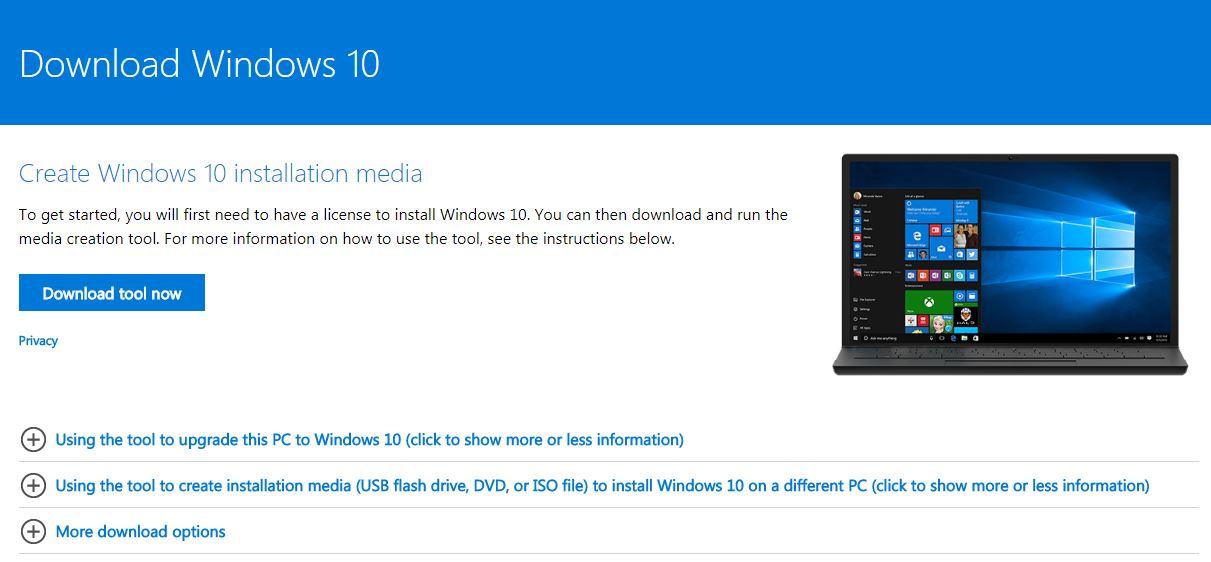
First, you’ll need a USB Flash/Thumb drive and 16GB or larger is probably best.  Go ahead and plug that into your PC.  Then, head over to Microsoft’s website.  This page gives you a couple of options.  If you want to try the Update Assistant, you can click the Update Now button.  Sometimes it works, but it’s success ratio doesn’t seem to be as good as the other option available here.  We suggest downloading the media creation tool, so go ahead and click on the Download Tool Now button.  Once it’s downloaded, go ahead and run it.

  • If prompted, select Install Anyway and Yes. 
  • Accept the license agreement.
  • Select the Create Installation Media… option and click Next. 
  • Select USB Flash Drive and click Next. 
  • Select your USB drive from the list and click Next. 
  • This will take a little while, especially if your internet connection isn’t the fastest.  Be patient.
  • Once the creation is done, click the Finish button.
  • Now you need to open Windows Explorer and browse to your thumb drive.
    • (Alternatively, if you unplug the drive for about 10 seconds and plug it back in, the folder may open on its own.)
  • With the folder open, double-click on Setup.exe (It may just say Setup on your computer.)
  • Click Yes if you are prompted to allow the program to run.
  • Leave the default option of Download Updates selected and click Next.
  • Click Accept.
  • Make sure it says to keep personal files and apps, then finish the wizard.
  • From here, it can be a little different for each PC, just follow the wizard and be patient.
If you’re still having trouble, contact Integration Technologies Inc!

Scott Johnston
Integration Technologies Inc.

Wednesday, March 14, 2018

How do I access my computer remotely?


There are countless resources available to get remote access to your computer.  LogMeIn has a plethora of solutions.  There’s Remote Desktop Protocol (RDP), VPN, TeamViewer, GoToMyPC and many more.  Integration Technologies Inc. preferred solution is ConnectWise, formerly ScreenConnect.  We’ve been using their service for several years and they now have a free version available that will work great for small tech shops and individuals.  As of this writing, the link to their free sign-up is right here.

To start using their service, you’ll need to go to the link above and create an account.  They ask you for your email address and a password.  They also ask you to select a custom URL.  You will definitely need to remember all three pieces of information, so record them somewhere secure.  I’d also suggest you use memorable options, since you may need to access your computer from anywhere.  After you submit the form, they’ll collect a few more pieces of information from you.  If you’re using this for individual use, just add “personal” as the business name, select “1-3 technicians” and “other” as the business model.  They may change this form in the future, but you get the idea.

connect wise, sign up, free trial


ConnectWise operates in 2 modes at the same time.  One mode is temporary access and the other is a permanent installer.  We are only going to cover permanent access in this article.  So, once you have created your account, we are going to click the access tab on the left and then click the build button.  You can customize this as you desire, but simply selection the options Machine Name, Personal, and Windows (.exe) will get the job done nicely.  Once you’ve selected those, click the Download link.

Now we have your account setup and your software created.  The file you just downloaded needs to be run on the computer that you want to access remotely.  After that, we need to go to a computer that we want to remote access that computer from.  Simply go to the custom URL you created in the beginning, then type in your username and password.  Once logged in, click on the Access tab on the left and then double-click on your computer name.  Follow the prompts and you’ll be remotely controlling your computer.

One important note –  To be able to access a computer remotely, it needs to be powered on.  It can’t be asleep (Control Panel > Power Options) and it needs to be connected to the internet.  As always, if you need any assistance, please contact Integration Technologies Inc.

Scott Johnston
Integration Technologies Inc.
www.myiti.com